
Connect Tulina to Claude Tag in Slack
Claude Tag is Claude inside a team's Slack channels: anyone can mention it and hand it work, in the thread, in front of the whole channel. To let it use Tulina you have to give it two things, and both are required:
- A Tulina API key. The pass. Anthropic stores it and adds it to requests on their way out of the network; neither Claude nor its sandbox ever sees it.
- A plugin. The declaration that Tulina exists. Without it, Claude has no idea an MCP server sits at that address and sees no Tulina tools at all.
This is not the Tulina connector for claude.ai or Claude Code, which you add inside the app with an interactive sign-in. In Slack that sign-in is impossible: Claude works in a disposable sandbox, with no browser and nobody at the screen. Hence the API key.
Before you start
Two roles are involved, and they're not the same one. On the Claude side you need to be an Owner of the Claude organisation (the Admin role is not enough), on a Team or Enterprise plan, with Claude Tag already connected to Slack. On the Tulina side, creating the connector token is restricted to a workspace admin — the Plugins page shows everyone the instructions, but only an admin sees the button that mints the token.
The Claude-side configuration happens on claude.ai/admin-settings/claude-tag → Claude Tag access → the Slack tab → the workspace concerned.
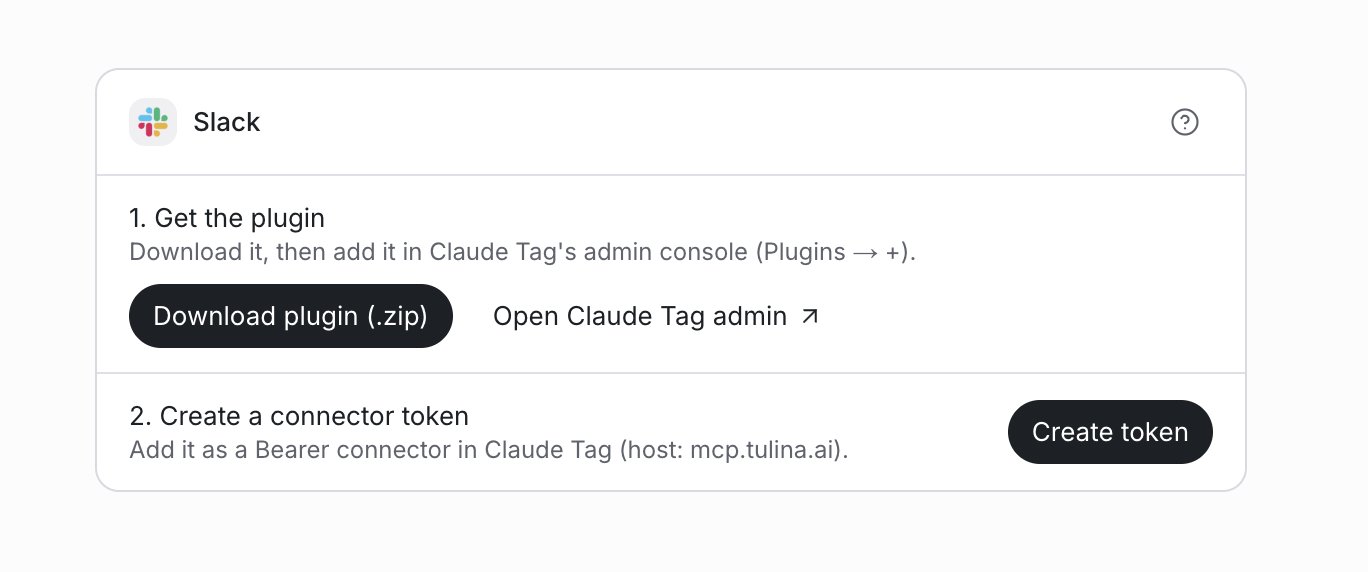
Steps 1 and 3 below both happen on the same card, in Settings → Plugins → Slack:
1. Create the API key
In the Tulina app, open Settings → Plugins → Slack and click Create token. It is shown once, so copy it before you leave the page. The product tells you the same thing this guide does before you confirm: the key carries your account, and Slack will use whatever that account can — see "What to tell the user first" below before you pick which account creates it.
2. Declare the connection
Connectors section of the workspace → +:
- Name —
Tulina - Credential type — Bearer
- Token — the API key from step 1
- Allowed hosts —
mcp.tulina.ai
3. Add the plugin
Plugins section of the workspace → +.
There are two ways in, and both give you the same tulina-mcp plugin:
- Upload the archive. Same Settings → Plugins → Slack page as step 1 has a Download plugin (.zip) button — grab it there and upload it here. Fastest, and always the current version.
- Point at a private repository. Open
Tulina-team/claude-tag-template, use Use this template → Private to copy it into your own organisation, then add your copy as an organisation plugin source. Slower to set up, but updates arrive on their own.
Claude Tag only accepts private or internal repositories as a source, which is why the second path starts from a template rather than a fork: a fork stays public, and would be refused.
4. Try it
In a channel, /invite @Claude, then in a new thread:
@Claude who am I on Tulina?
Claude should answer by naming the account and the organisation the API key belongs to.
Attach at the right level
Connections and plugins attach directly to the workspace. That is the simple route, and it covers all of its channels at once.
Access packs are an optional layer on top: a named set of connections you can attach in several places, used to give different access depending on the channel. That is the only thing they are for. A pack that has been created but attached nowhere applies nowhere, which is the most common cause of a configuration that looks correct and produces nothing.
What to tell the user first
The API key carries the account that created it. In the channels it covers, Claude will act with that account's connectors, under its default organisation — and anyone writing in those channels can use them through it.
Raise this before the installation, not after. There are two levers, and neither of them is the API key itself:
- the account — a dedicated account holding only the access it needs, rather than a personal one that opens an entire toolbox;
- the Slack scope — one workspace, or one channel, rather than default Slack access.
When it does not work
"An OAuth authorisation needs to be completed." The API key is not reaching the server: it answers 401, and the MCP client attempts a sign-in that is impossible inside the sandbox. Check the connection's API key and host.
"The proxy refused the CONNECT" (403). mcp.tulina.ai is not allowed by
any connection applied to this channel. Either the host is missing, or the
connection sits in an access pack that was never attached.
Claude answers, but sees no Tulina tools. The plugin is not attached to this scope. Check the Plugins section of the workspace.
A change has no effect. A thread keeps the connections and plugins it had when it started. Open a new thread.
Claude answers, but finds no connectors. The account behind the API key does not have any yet. Add them in the Tulina app.
Two typing traps are worth knowing. The allowed host is written
mcp.tulina.ai, with no scheme and no path. And an Authorization header set
by hand has to carry the Bearer prefix, or the server refuses it — the native
Bearer credential type does that for you, which is one more reason to
prefer it.
Revoking
In the Tulina app → Personal settings. Revocation is immediate and affects that key only: not the account, not any other integration. It is the right move when someone leaves the team, when a channel is opened more widely, or at the slightest doubt.
Still stuck? Talk to us.